


DesignPLUS
DesignPLUS (powered by Cidi Labs) is a time-saving toolset for every educator and course designer working in the Canvas LMS. It helps you quickly build, style, and scale high-quality courses - making learning engaging and accessible.
For questions about implementing DesignPlus in Canvas, email canvassupport@calpoly.edu.
DesignPLUS works with the Canvas Rich Content Editor (RCE) within these Canvas tools:
- Pages
- Assignments
- Discussions
- Classic Quizzes
- Module Text Headers
With DesignPLUS, you can:
- Design faster without sacrificing quality
- Make accessibility easier from the start
- Apply institution-wide design standards at scale
- Enable non-technical users to succeed
- Increase productivity and return on investment
- Extend Canvas beyond its out-of-the-box capabilities
How Does DesignPLUS Work in my Current Canvas Courses?
- DesignPLUS allows you to add design elements to your course content.
- It does not apply a template on top of your current work. For example, if you copy a Canvas course you cannot automatically apply a template to the course. You will have to edit your content to include the DesignPLUS Template and to utilize DesignPlus tools.
- You can edit the Template Content and modify all elements in the templates within the DesignPLUS toolbar.
How do I access the DesignPLUS tools?
Create or Edit a Canvas Page, Assignment, Discussion, Classic Quiz, or Module Text Header. The tools work the Canvas Rich Content Editor (RCE).
To access the DesignPLUS Tools:
- Create or Edit a Canvas Page, Assignment, Discussion, Classic Quiz, or Module Text Header. The tools work within the Canvas Rich Content Editor (RCE). If you are having trouble accessing the tools using the steps below, please create or edit a new Canvas Page, Assignment, Discussion, Classic Quiz, or Module Text Header first.
On your computer keyboard...
Mac: press Shift + Option + D keyboard keys.
PC: press Shift + ALT + D keyboard keys.
NOTE: If you do not want to have the Launch Button visible, you do not have to continue with the following steps.
- From the DesignPLUS toolbar, choose the kabob (three dots) on the top right.
- Choose the User Settings button.
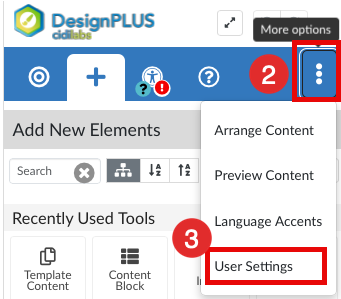
- Check the Show Launch Button box.
- Click on the X on the right of the User Settings bar.
Now the Rocket Ship icon (top right) will open the DesignPLUS tools while in the RCE.
Built-In DesignPLUS Support
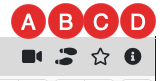
A) Video: If available for a particular tool, the video icon will launch a module with a video tutorial about the tool.
B) Walkthrough: If available for a particular tool, the footsteps icon will launch a guided walkthrough to help familiarize you with the tool.
C) Favorite Tool Button: The star icon/toggles whether the current tool appears in the Favorite Tools section of the Add New Elements page.
D) Tool Information Button: The information icon displays a brief overview of the current tool and links to User Guide article(s) for the current tool.
How Do I add a Cal Poly (Primary) Template to my Canvas Content?
You can add a Cal Poly (Primary) template when you Create or Edit a Canvas Page, Assignment, Discussion, Classic Quiz, or Module Text Header. First, you must enable the DesignPLUS tools, following the instructions above.
To add Template Content to an existing item:
- Click on the top left of your Rich Content Editor (RCE) and then press your Return/Enter key to add a space above.
NOTE: If you would like more screen real estate, use the Toggle Full Screen button. This will display the Canvas RCE in full screen on the left of the DeisgnPLUS toolbar.
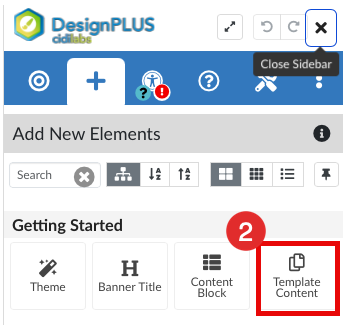
- With your cursor on the top left above the content, choose the DesignPLUS button Template Content.
- At the bottom of the DeisgnPLUS tools, make sure that ONLY the Primary button is selected.
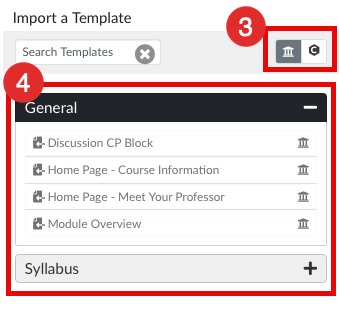
- Then under General or Syllabus, choose one of the Cal Poly Templates. While you roll over these templates, an example will appear on the left. When you click on it, the template is applied to your content within the RCE.
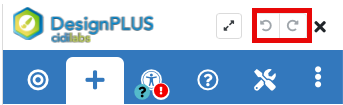
- At any time, you can Undo or Redo your work.
- When your work is complete, use the Canvas Save button on the bottom right of the Canvas: Page, Assignment, Classic Quiz, Discussion, or Module Header.
NOTE: If you used the Toggle Full Screen button, you will need to click on it again to turn it off to see the Save button.
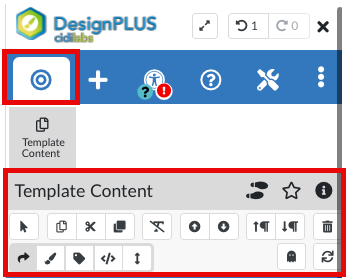
While working on the content with the DesignPLUS tools, make sure to use the toolbar and NOT the RCE tools. While editing the Template Content, the DesignPLUS tools will change to the bullseye view. To learn more about these tools, see the Cidi Labs User Guide.
How do I add the Cal Poly (Primary) Template to my Copied Course?
When copying a Canvas course, the new course shell takes on the exact layout, modules, and navigation setup of the original course. It also copies all course settings, custom pages, and assignments. However, custom homepage designs do not automatically become the active Home Page and must be manually selected after the copy completes.
For the first time, when using DesignPLUS Templates, instructors will need to manually add the templates to their course content items. Once added, it will copy into future courses.
The Template Content is added into the Rich Content Editor. If you choose to use the Syllabus tool from Canvas, the [Template] - Syllabus may be too long for this tool, but you can edit it or choose to link to the [Template] - Syllabus as a Page.
Cidi Labs DesignPLUS Support
- DesignPLUS Video Training Series
- DesignPLUS User Guide
- DesignPLUS Sidebar Resources
- DesignPLUS Accessibility and Usability Tools
- Cidi Labs: DesignPLUS Training Schedules
- DesignPLUS Release Notes


