


Panopto Video
Panopto in Canvas
Panopto is the campus video platform for storing, streaming, and sharing course video content in Canvas. It is the recommended place to upload and manage instructional videos.
Panopto also has built-in accessibility features, which help make video content accessible for students. These features include high-quality, automatic captions (though they should always be checked for accuracy) for all videos.
For questions about using Panopto in Canvas, email canvassupport@calpoly.edu.
NOTE: All video recordings from your Course Zoom integrations will be stored in the Panopto Video course folders. This will automatically share the videos with the students in the course.
Important: Do not upload large video files such as .mp4 files directly into Canvas. Upload videos to Panopto, then add them to your course as a link or embedded video.
 Panopto Webinar
Friday, October 23, from 11 - noon PST
Quick Start | Canvas: Access and Accounts | Using Panopto in Canvas | Upload Videos | Record New Videos | Zoom Recordings | Captions and Accessibility | Quizzes and Assignments | Sharing and Permissions | My Panopto | Support
Why use Panopto to Share Videos?
- Privacy: Panopto videos are locked down to the specific user or the specific integrated Canvas course folder (unless the owner provides more access).
- Security: Users must login with campus single-sign-on (SSO) and Multi-Factor Authentication (MFA).
- Smart Search: Automatically transcribes speech and indexes on-screen text, slides, and spoken words so users can search inside any video.
- Zoom: When using the ZOOM plugin for Canvas, all recorded videos automatically go to the Panopto Canvas course folder.
- Panopto Video: Within the Canvas course navigation, students see a library of all uploaded lectures and can click any thumbnail to play a video. You can also embed videos anywhere in the course.
Quick Start
Most faculty will use Panopto in one of three ways:
- Upload an existing video and place it in Canvas
- Record a new lecture or screencast with Panopto
- Use Zoom cloud recordings that are copied into Panopto
Start here with Panopto's official getting started resources:
Canvas: Panopto Access and Accounts
Faculty have access to Panopto Videos within their course menu (left). Clicking on this course menu, will create a Panopto folder for your Canvas course. Faculty and their students are automatically logged in to Panopto when accessing it through Canvas.
Faculty and students can embed videos directly into Canvas pages, discussions, modules, and quizzes without leaving Canvas.
Using Panopto in Canvas
Each Canvas course can have a Panopto course folder that serves as the video library for that course. From there, instructors can upload videos, record directly into the course folder, manage captions, and reuse videos throughout the course.
Common ways to add Panopto content in Canvas:
- Add a Panopto video link in a module
- Embed a Panopto video on a page, discussion, assignment, or other Canvas content area
- Enable the Panopto navigation item in the course menu for direct access to the course video library
Recommended practice: Store videos in the Panopto course folder, then place them in Modules or embed them in Pages wherever students need them.
Upload Videos into Panopto
If you already have a video file, upload it to Panopto instead of uploading it directly to Canvas.
NOTE: All video recordings from your Course Zoom integrations will be stored in the Panopto Video course folders.
- Open your Panopto folder or Canvas course folder
- Select Create
- Choose Upload media
- Select your video file and wait for processing to complete
- Add the video to Canvas as a link or embedded item
Official Panopto upload guides:
Record New Videos with Panopto
Panopto can be used to create lecture recordings, screencasts, demonstrations, and webcam videos. You can record your screen, camera, microphone, and presentation content, then upload the recording directly to Panopto.
Official recording guides:
To keep course videos organized, record directly into the appropriate course folder whenever possible.
Zoom Recordings
Panopto and Zoom can work together for cloud recordings.
- If a Zoom meeting is scheduled through the Zoom tool in Canvas, the cloud recording will be copied into the associated course folder in Panopto.
- If a Zoom meeting is scheduled outside Canvas, the cloud recording will not be copied into your personal Panopto area, often in a folder such as Meeting Recordings. Zoom recordings outside of Canvas courses can be manually moved into Panopto.
If a Zoom recording does not appear where you expect it, check how the meeting was created and whether it was recorded to the cloud.
Captions and Accessibility
Panopto supports automatic captions for videos. These machine-generated captions can save time, but they should always be reviewed and corrected for accuracy, especially when videos include discipline-specific terms, names, technical language, or poor audio quality.
Faculty are responsible for reviewing captions and making corrections as needed.
Official caption guides:
- How to Edit or Delete Captions and Audio Descriptions
- How to Manually Add Captions and Audio Descriptions
- How to Add ASR Captions
Basic workflow:
- Open the video in Panopto
- Open the editor
- Select the Captions area
- Review and correct entries
- Save your changes
Quizzes and Assignments
Panopto can also be used for interactive video activities in Canvas.
- Add quiz questions inside a Panopto video
- Use a Panopto video as part of a Canvas assignment workflow
- Create student video assignment activities when appropriate
Official Panopto guides:
Sharing and Permissions
Videos stored in a Panopto course folder usually inherit course-related access. Videos stored in personal folders may need to be shared manually, depending on who needs access.
Before sharing a video, verify that the correct audience can view it.
Official Panopto sharing guides:
Best practice: When a video is intended for students in a Canvas course, store it in the course folder whenever possible, rather than relying on ad hoc sharing from a personal folder.
Best Practices
- Use Panopto, not direct Canvas file uploads, for instructional video
- Keep course videos in the Panopto course folder for easier management
- Use Modules and Pages to place videos where students need them
- Review auto-generated captions for accuracy
- Check sharing permissions before sending a Panopto link
- Use Panopto for longer-term access to course video content
Panopto Login (Outside of Canvas)
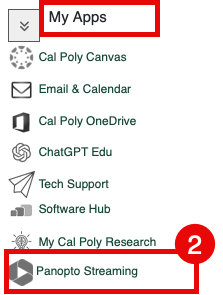
- Go to the Portal https://my.calpoly.edu
- From the My Apps, choose Panopto Streaming.
- Go to https://calpoly.hosted.panopto.com/
- Choose CalPoly Login
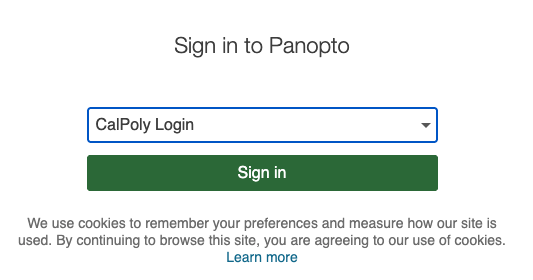
- Enter your Cal Poly Username and Password, then click the Login button.
Support
If you need help using Panopto or troubleshooting Panopto in Canvas, please refer to these additional support links:


