


Panopto for Students
Panopto in Canvas
Panopto is the campus video platform for storing, streaming, and sharing course video content in Canvas. It is the recommended place to upload and manage instructional video.
Important: Do not upload large video files such as .mp4 files directly into Canvas. Upload videos to Panopto, then add them to your course as a link or embedded video.
Submit Video Assignment | Upload a Video | Video Quiz| Share Video in Canvas | iOS Settings
Submit a Panopto Video in an Assignment
The instructor can create a Canvas Assignment with Panopto, so students can create and submit a video.
From a Canvas Assignment:
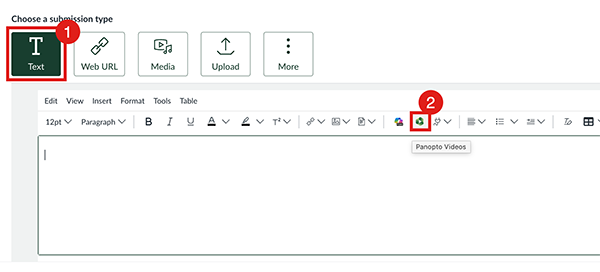
- Click on the Text button.
NOTE: If you do not see step one, proceed to step two. - Click on the Panopto button in the RCE (Rich Content Editor).
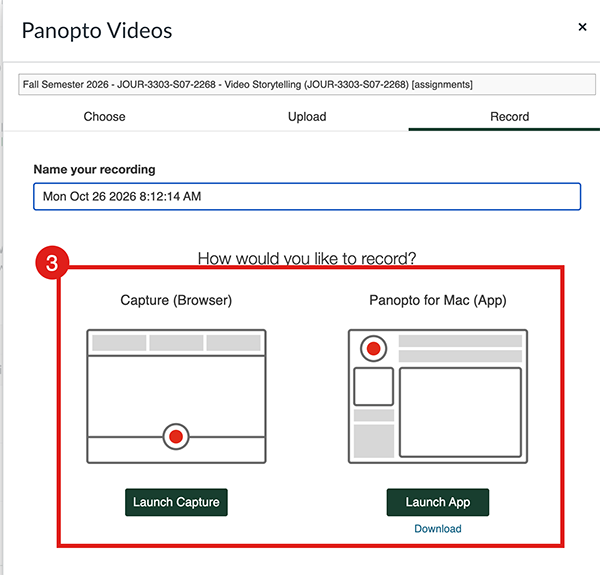
- Choose to record via the Browser (computer) or the APP (phone).
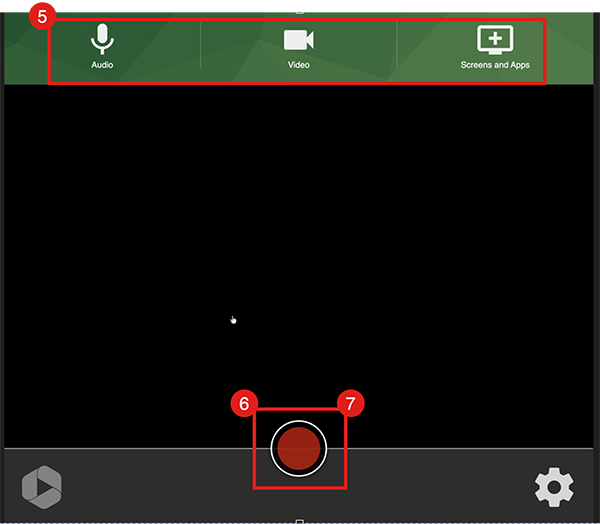
- Browser: A new tab will open with the Capture tool.
- Once the Audio and Video options have been selected.
Learn more about selecting a microphone or camera source. - Click on the Record button to start the recording.
- Click on the Record button again to stop recording.
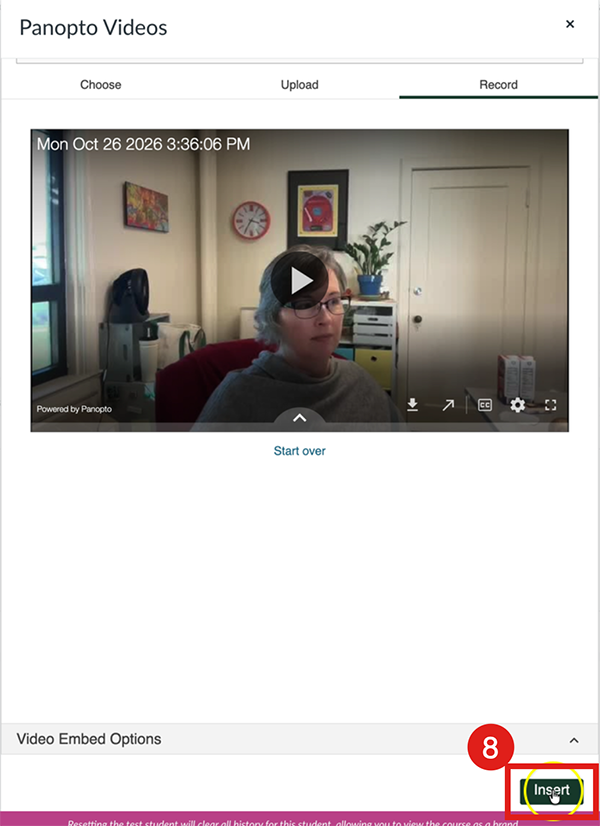
- Go back to the Canvas tab to Insert the video.
- Click on the Submit Assignment button.
Upload a Video to an Assignment
The instructor can create a Canvas Assignment with Panopto, so students upload a video.
From the Assignment:
- Click on the Panopto button in the RCE.
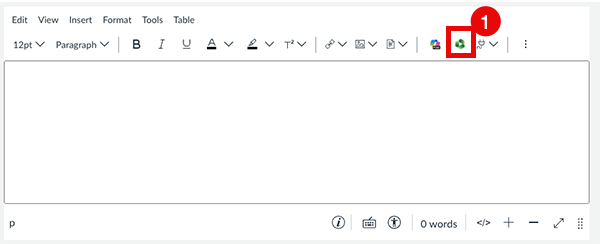
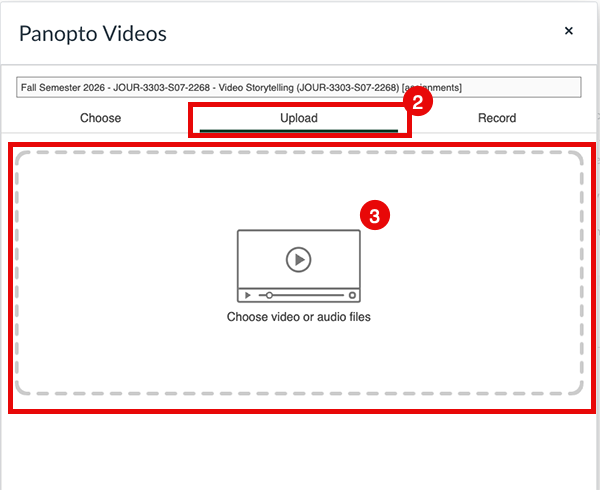
- Click on the Upload tab.
- Upload the video.
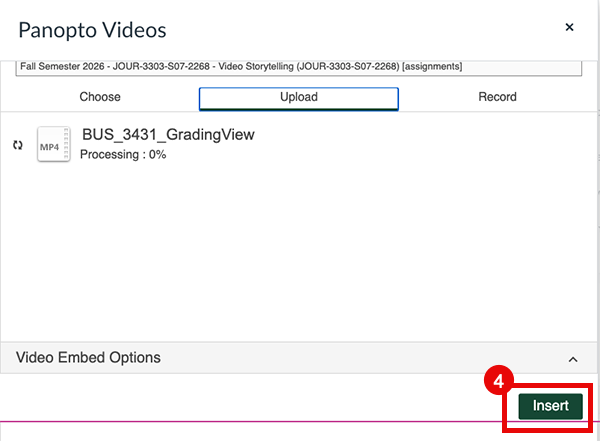
- Click on the Insert button.
- Click on the Submit Assignment button.
In-Video Panopto Quizzes
NOTE: We recommend taking in-video quizzes on desktops/laptops with reliable connections to the internet. The in-video quizzes should work with regular browsers on mobile devices, but not in the apps.
- Open the assignment. Once the video appears, press Play.
- When the video reaches a timestamp at which a quiz has been placed, it will pause and display the quiz. Select your answer and click Finish.
- Depending on the options your faculty has set, you may be shown immediately whether your answer was right or wrong. You may also have options to retake the quiz and/or to review your answer.
Click Continue when you are ready to proceed. - Repeat the process for any additional quizzes until the video has finished playing.
NOTE: Always check your grades after completing an activity to ensure it has been successfully marked in Canvas.
Share Video
You can embed your Panopto video in a Canvas Discussion or any option that allows you to add text with the Rich Content Editor (RCE).
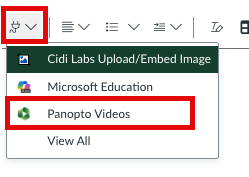
- In the RCE, pick the plug icon.
- Choose Panopto Videos.
- See additional steps in the Panopto tutorial.
Panopto Login (Outside of Canvas)
- Go to https://calpoly.hosted.panopto.com/
- Choose CalPoly Login
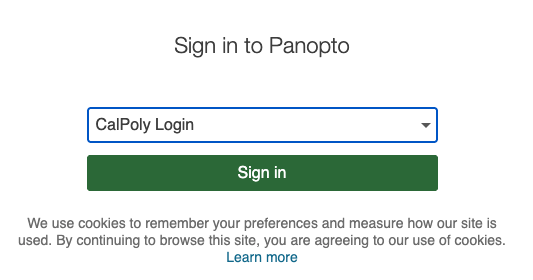
- Enter your Cal Poly Username and Password, then click the Login button.
You can create your own videos in Panopto. To learn more, please see the Panopto tutorials.
Accessing Panopto Video on an iPad or iPhone (iOS)
Although Canvas will work on your browser in iOS, it is better to use the Canvas APP.
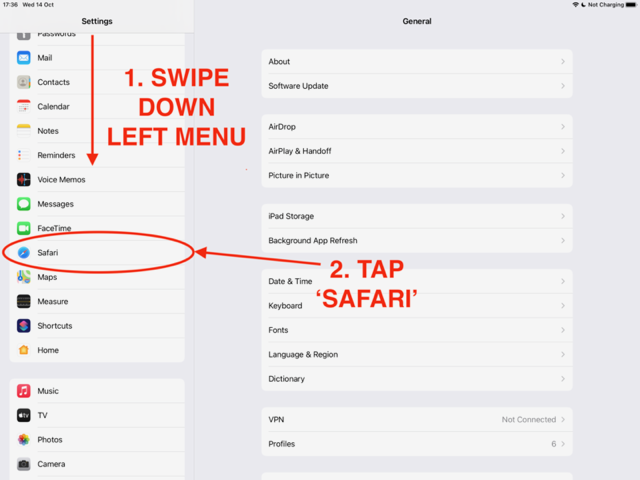
- On your iPad, open your Settings app. The icon will be this or similar:

- Swipe down on the left-hand menu until you find 'Safari'. Tap 'Safari' to open the Safari app's settings:
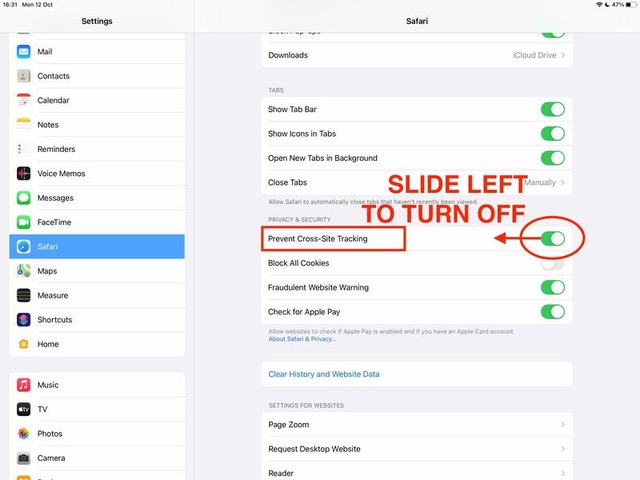
- Swipe down on the right-hand menu to show more settings. You want to allow Safari to use cross-site tracking. Find the setting 'Prevent Cross-Site Tracking' and slide the switch to OFF, i.e. grey not green:
Support
If you need help using Panopto or troubleshooting Panopto in Canvas, please refer to these additional support links:


