

File is Missing a Title Element
A missing title element error means a PDF lacks a title, which is critical for accessibility (screen readers).

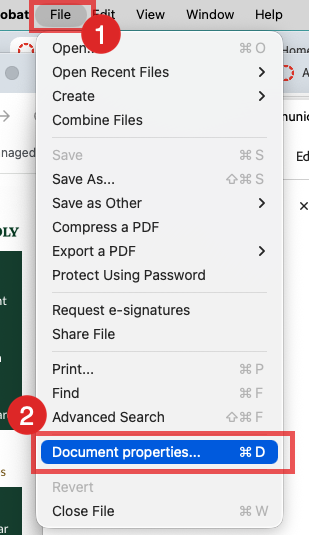
This can be fixed in Adobe Acrobat. Open the file in Adobe Acrobat.
- Choose the File >
- Document properties menu.
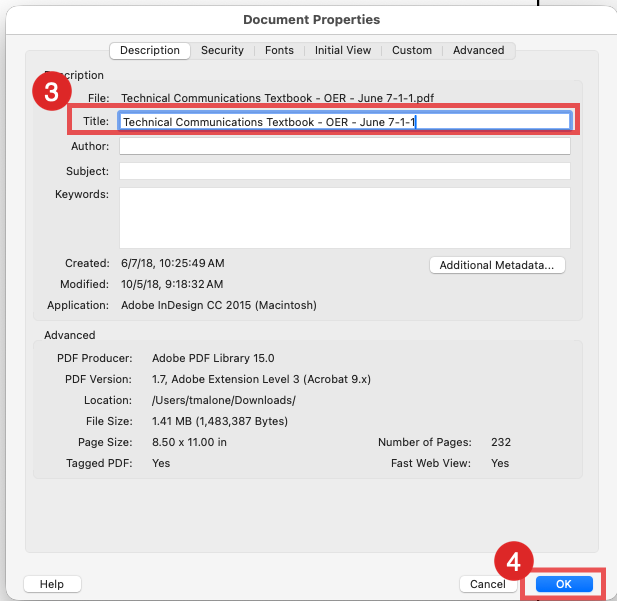
- Type in the title name (this does not include the file type - PDF).
- Click on the OK button.
- Save the file.
In Access4All (UDOIT), you can scan and remediate files within the Review Files tool.
- Click on the Access4All menu link in your course. After the course has been scanned.
- Click on the Review Course Files tab at the top.
- Find the item you just fixed - "File is missing a title element", and click on the Review button on the right.
- Use Access4All to Replace file with an uploaded file.
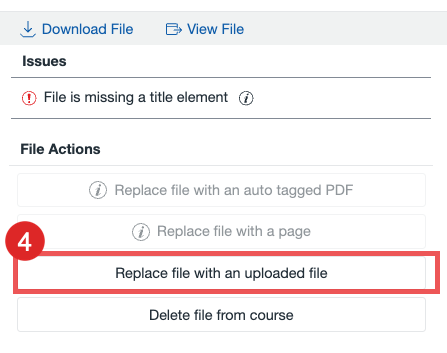
NOTE: You will know when the file was replaced when a green check mark appears on the left.
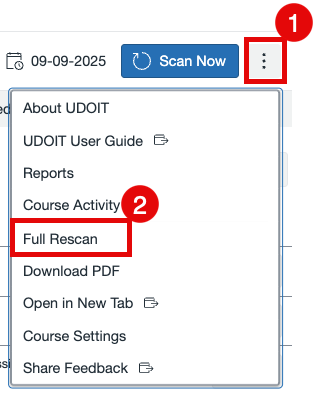
After any change, make sure to perform a Full Rescan to see the changes within your UFIXT and Review Course Files sections.